Run the application
- Understand the application
- Run the application
- Simulate failures
Now that you understand the Workflow and Activities, run the application. You'll start the Workflow, watch it appear in the Web UI, then start a Worker that executes the Activities.
Start the Workflow
First, make sure the local Temporal Service is running. Open a new terminal window and run:
temporal server start-dev
To start the Workflow, run run_workflow.py:
python run_workflow.py
The Workflow is now running. Leave the program running.
The Task Queue is where Temporal Workers look for Workflows and Activities to execute:
MONEY_TRANSFER_TASK_QUEUE_NAME = "TRANSFER_MONEY_TASK_QUEUE"
Here's how run_workflow.py connects to the Cluster and starts the Workflow:
import asyncio
import traceback

from temporalio.client import Client, WorkflowFailureError

from shared import MONEY_TRANSFER_TASK_QUEUE_NAME, PaymentDetails
from workflows import MoneyTransfer


async def main() -> None:
    client: Client = await Client.connect("localhost:7233")

    data: PaymentDetails = PaymentDetails(
        source_account="85-150",
        target_account="43-812",
        amount=250,
        reference_id="12345",
    )

    try:
        result = await client.execute_workflow(
            MoneyTransfer.run,
            data,
            id="pay-invoice-701",
            task_queue=MONEY_TRANSFER_TASK_QUEUE_NAME,
        )

        print(f"Result: {result}")

    except WorkflowFailureError:
        print("Got expected exception: ", traceback.format_exc())


if __name__ == "__main__":
    asyncio.run(main())
View the state of the Workflow in the Web UI
Visit the Temporal Web UI where you'll see your Workflow listed.
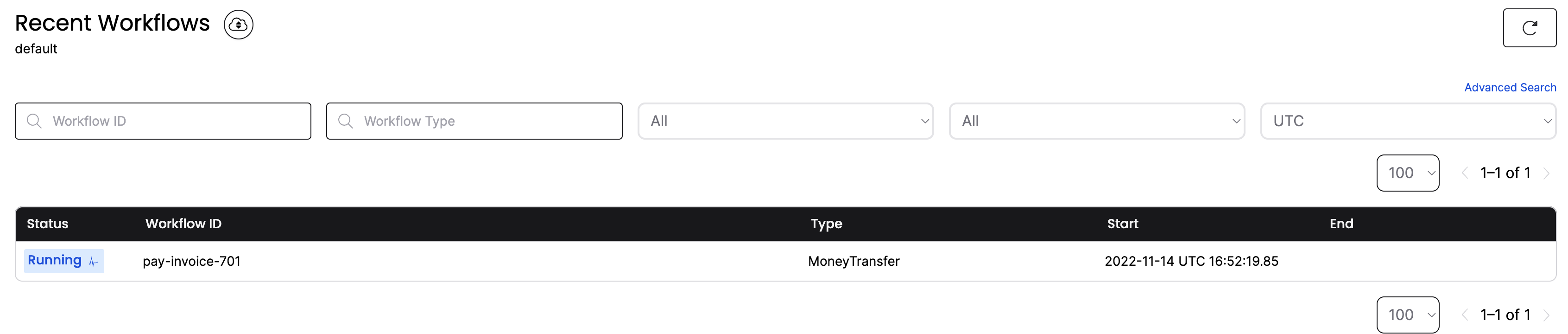
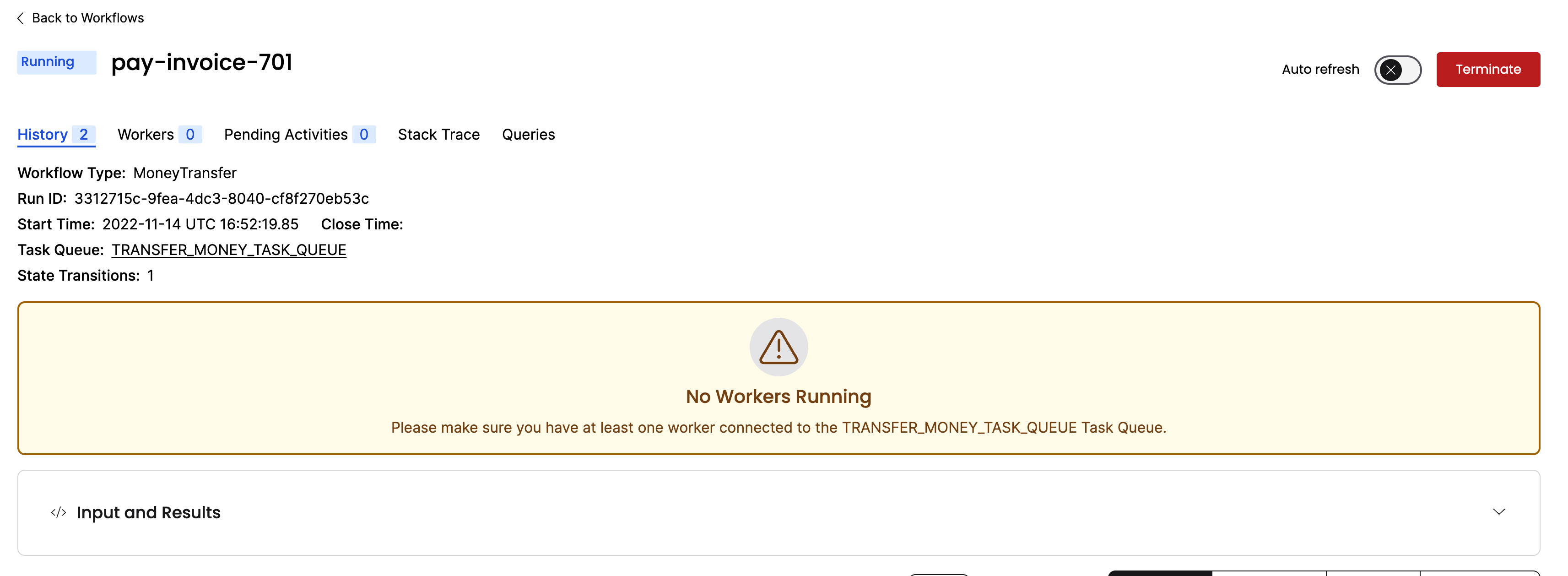
Click the Workflow ID. You can see everything about the execution: inputs, timeouts, scheduled retries, attempts, stack traces, and more.
Click the Input and Results section to see the inputs:
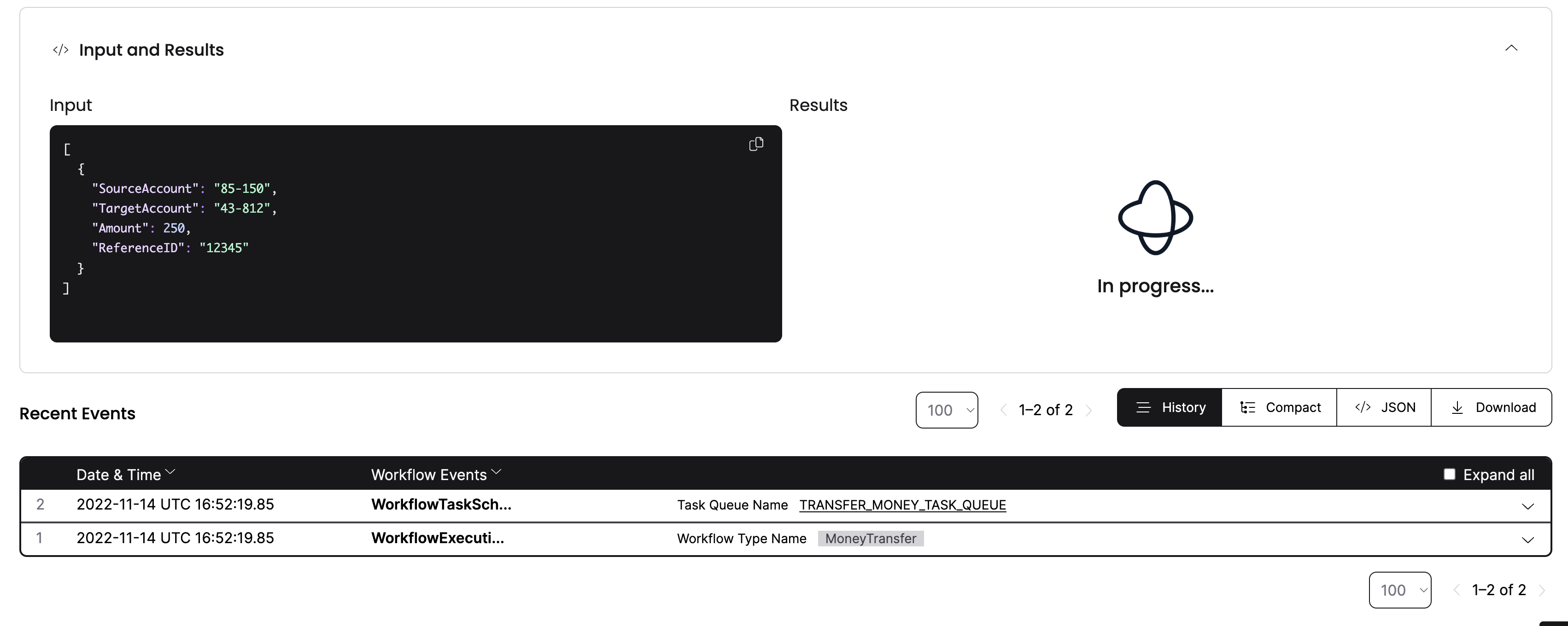
The Workflow is running, but hasn't executed yet - no Workers are connected to the Task Queue. You'll start the Worker next.
Start the Worker
A Worker:
- can only execute Workflows and Activities registered to it.
- knows which piece of code to execute based on the Tasks it gets from the Task Queue.
- only listens to the Task Queue that it's registered to.
Open a new terminal window. Run run_worker.py from the project root:
python run_worker.py
It connects to the Temporal Cluster, specifies the Task Queue, and registers the Workflow and three Activities:
import asyncio

from temporalio.client import Client
from temporalio.worker import Worker

from activities import BankingActivities
from shared import MONEY_TRANSFER_TASK_QUEUE_NAME
from workflows import MoneyTransfer


async def main() -> None:
    client: Client = await Client.connect("localhost:7233", namespace="default")
    activities = BankingActivities()
    worker: Worker = Worker(
        client,
        task_queue=MONEY_TRANSFER_TASK_QUEUE_NAME,
        workflows=[MoneyTransfer],
        activities=[activities.withdraw, activities.deposit, activities.refund],
    )
    await worker.run()


if __name__ == "__main__":
    asyncio.run(main())
When the Worker starts, it begins polling the Task Queue:
2024/02/12 10:55:43 INFO  Started Worker
2024/02/12 10:55:43 Withdrawing $250 from account 85-150.

2024/02/12 10:55:43 Depositing $250 into account 43-812.
Switch back to the terminal where your python run_workflow.py program is running:
Transfer complete.
Withdraw: {'amount': 250, 'receiver': '43-812', 'reference_id': 'fff4d970-226d-4db5-8e1c-3047a63f9c85', 'sender': '85-150'}
Deposit: {'amount': 250, 'receiver': '43-812', 'reference_id': 'fff4d970-226d-4db5-8e1c-3047a63f9c85', 'sender': '85-150'}
Check the Web UI again. You'll see one Worker registered, and the Workflow status shows completed:
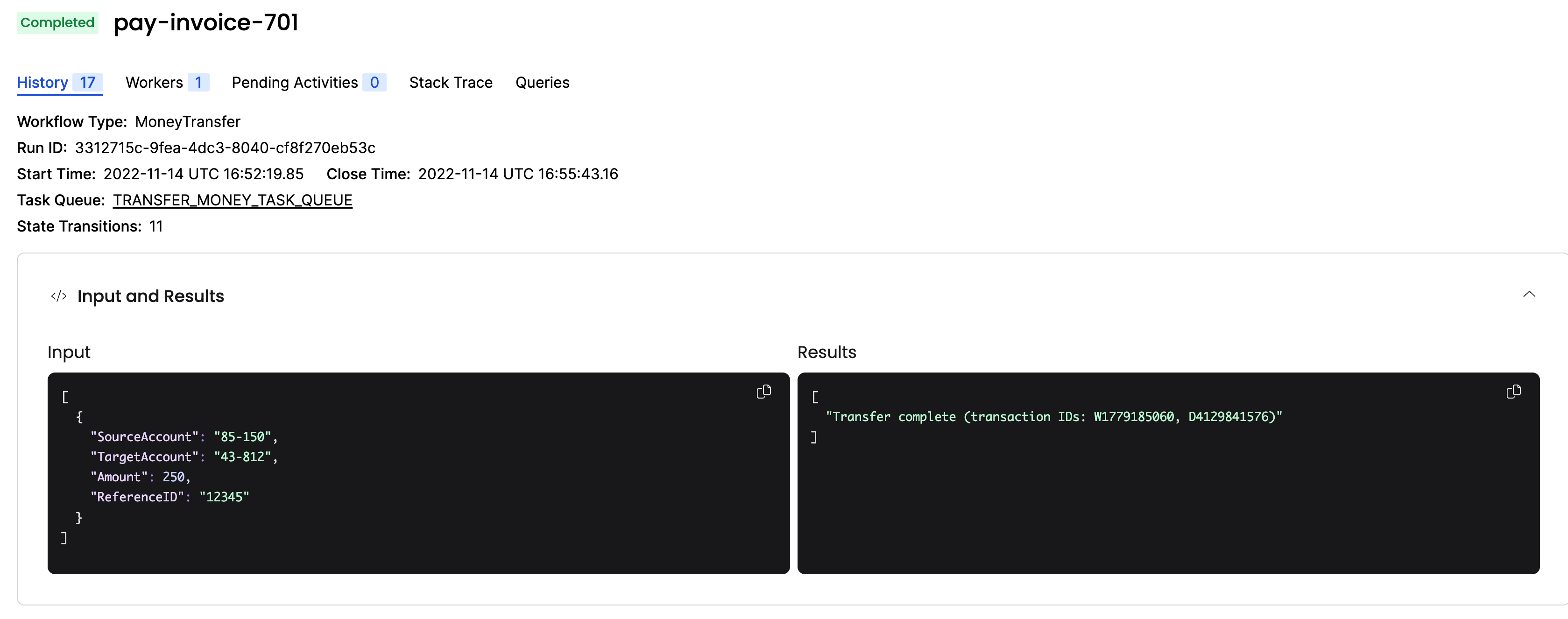
Each of these steps is recorded in the Event History. You just ran a Temporal Workflow application and saw how Workflows, Activities, and Workers interact. Next you'll explore failures.
Get notified when we launch new educational content
New courses, tutorials, and learning resources - straight to your inbox.