Develop code that durably executes
- Introduction
- Project setup
- Durable execution
The SDK's ability to Replay a Workflow Execution is a major aspect of Temporal's durable execution. This chapter introduces the development patterns that enable it.
This chapter introduces best practices for developing deterministic Workflows that can be Replayed, enabling a Durable Execution.
Learning objectives:
- Identify SDK API calls that map to Events.
- Recognize non-deterministic Workflow code.
- Explain how Workflow code execution progresses.
The information in this chapter is also available in the Temporal 102 course.
Retrieve a Workflow Execution's Event History
There are a few ways to view and download a Workflow Execution's Event History. We recommend starting with either the Temporal CLI or the Web UI.
Using the Temporal CLI
Use the temporal workflow show command to save the Event History to a local file.
Local dev server:
temporal workflow show \
 --workflow-id backgroundcheck_workflow \
 --namespace backgroundcheck_namespace \
 --output json > backgroundcheck_workflow_history.json
The most recent Event History for that Workflow Id is returned when you only use the Workflow Id. Use the --run-id option to get the Event History of an earlier Workflow Execution by the same Workflow Id.
Temporal Cloud - provide the paths to your certificate and private keys or set them as environment variables:
temporal workflow show \
 --workflow-id backgroundcheck_workflow \
 --namespace backgroundcheck_namespace \
 --tls-cert-path /path/to/ca.pem \
 --tls-key-path /path/to/ca.key \
 --output json  > backgroundcheck_workflow_history.json
Self-hosted Temporal Cluster using the Temporal CLI command alias:
temporal_docker workflow show \
 --workflow-id backgroundcheck_workflow \
 --namespace backgroundcheck_namespace \
 --output json  > backgroundcheck_workflow_history.json
Via the UI
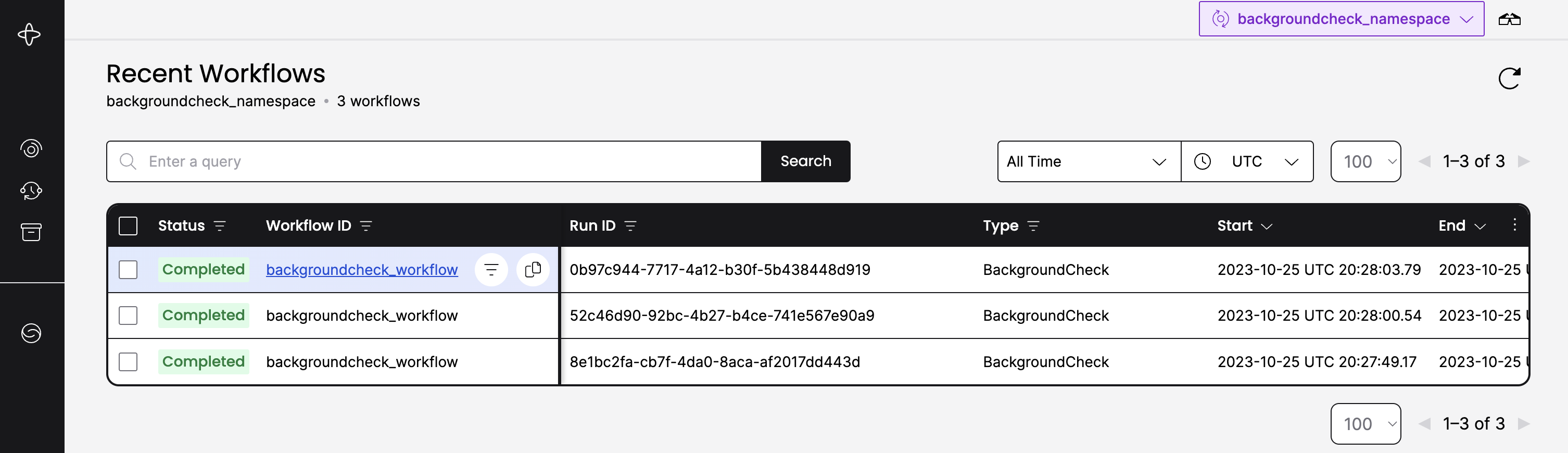
A Workflow Execution's Event History is also available in the Web UI. Navigate to the Workflows page and select the Workflow Execution:
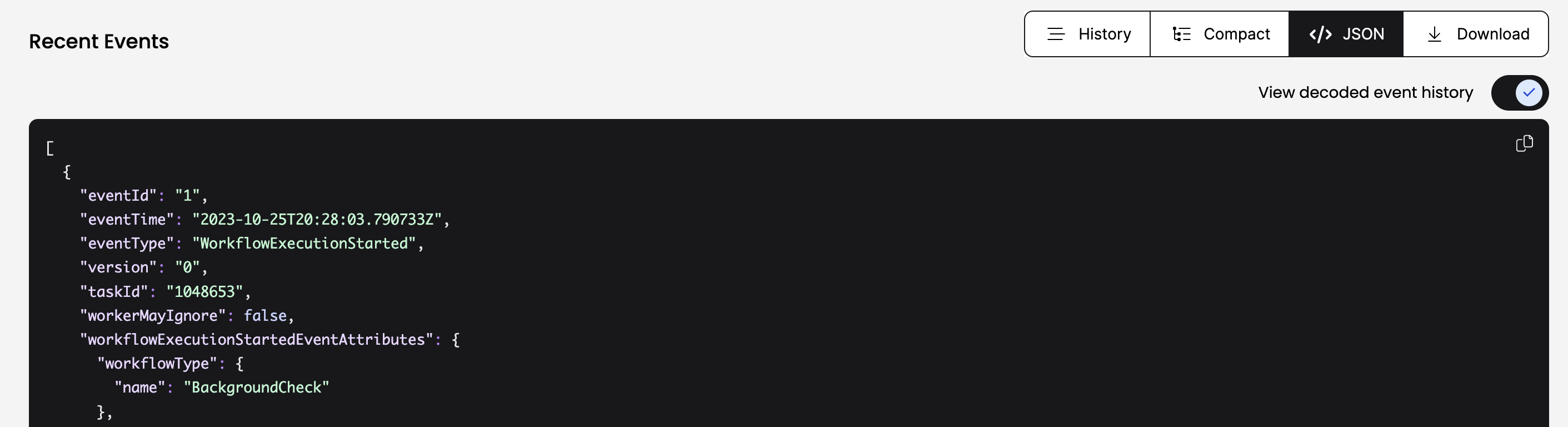
From the details page you can copy the Event History from the JSON tab and paste it into the backgroundcheck_workflow_history.json file:
Replay a Workflow Execution in TypeScript
To replay a single Event History, use worker.runReplayHistory.
When an Event History is replayed and non-determinism is detected, DeterminismViolationError is thrown. If replay fails for any other reason, ReplayError is thrown.
Load a single Event History from disk:
const filePath = './history_file.json';
const history = await JSON.parse(fs.promises.readFile(filePath, 'utf8'));
await Worker.runReplayHistory(
  {
    workflowsPath: require.resolve('./your/workflows'),
  },
  history,
);
Download the Event History programmatically using a Client:
const connection = await Connection.connect({ address });
const client = new Client({ connection, namespace: 'your-namespace' });
const handle = client.workflow.getHandle('your-workflow-id');
const history = await handle.fetchHistory();
await Worker.runReplayHistory(
  {
    workflowsPath: require.resolve('./your/workflows'),
  },
  history,
);
Combine client.workflow.list() and worker.runReplayHistories() to replay in bulk:
const executions = client.workflow.list({
  query: 'TaskQueue=foo and StartTime > "2022-01-01T12:00:00"',
});
const histories = executions.intoHistories();
const results = Worker.runReplayHistories(
  {
    workflowsPath: require.resolve('./your/workflows'),
  },
  histories,
);
for await (const result of results) {
  if (result.error) {
    console.error('Replay failed', result);
  }
}
Why add a Replay test?
The Replay test verifies whether the current Workflow code remains compatible with the Event Histories of earlier Workflow Executions. A failed Replay test typically indicates non-deterministic behavior.
Workflow code becomes non-deterministic primarily through:
- Intrinsic non-deterministic logic: when Workflow state or branching logic is determined by factors beyond the SDK's control.
- Non-deterministic code changes: when you change Workflow code and deploy those changes while there are still active Workflow Executions on older code versions.
Intrinsic non-deterministic logic
Due to the Temporal TypeScript Sandbox, many common sources of non-determinism will not cause non-deterministic errors, because the Sandbox replaces non-deterministic methods with deterministic ones. Here are common sources of non-determinism in other SDKs to be aware of:
Random number generation
- Since random numbers are non-deterministic, avoid them in Workflows in other SDKs.
- With the TypeScript SDK,
Math.random()is overridden by a deterministic version using a pseudo-random number generator seeded with a value specific to the Workflow Execution. - For truly random numbers, use Activities.
Interacting with external systems or state
- Directly accessing or mutating external systems or state (API calls, file I/O, communicating with other services, invoking LLMs and AI services) should be avoided within the Workflow. LLMs and AI services are non-deterministic even when the network call succeeds.
- With the TypeScript SDK, the Workflow sandbox cannot import code that makes network requests or nondeterministic modules. Use Activities for such operations.
Working with system time
Date.now()is overridden with a deterministic version that reflects the current system time in milliseconds, recorded at the first invocation of a Workflow Task. It remains constant during replays.- Use sleep() to ensure deterministic behavior during replays.
setTimeoutis also safe due to the TypeScript sandbox.
Handling data structures with non-deterministic ordering
Be careful when iterating over data structures. In some cases, such as iterating over object properties with a for in loop, the order of property enumeration may not be guaranteed.
One way to produce a non-deterministic error is to use a random number to determine whether to sleep inside the Workflow:
import { log, proxyActivities, sleep } from '@temporalio/workflow';
import type * as activities from './activities';

const { ssnTraceActivity } = proxyActivities<typeof activities>({
  startToCloseTimeout: '10 seconds',
});

// backgroundCheckNonDeterministic is an anti-pattern Workflow Definition
export async function backgroundCheckNonDeterministic(
  ssn: string,
): Promise<string> {
  // CAUTION, the following code is an anti-pattern showing what NOT to do
  if (getRandomNumber(1, 100) > 50) {
    await sleep('10 seconds');
  }

  log.info('Preparing to run daily report', {});

  try {
    const ssnTraceResult = await ssnTraceActivity(ssn);
    return ssnTraceResult;
  } catch (err) {
    throw err;
  }
}

function getRandomNumber(min: number, max: number) {
  let seed = 1234;
  seed = Math.floor(((seed * seed) % 10000) / 100);
  return min + (seed % (max - min + 1));
}
The Worker logs will show something similar to:
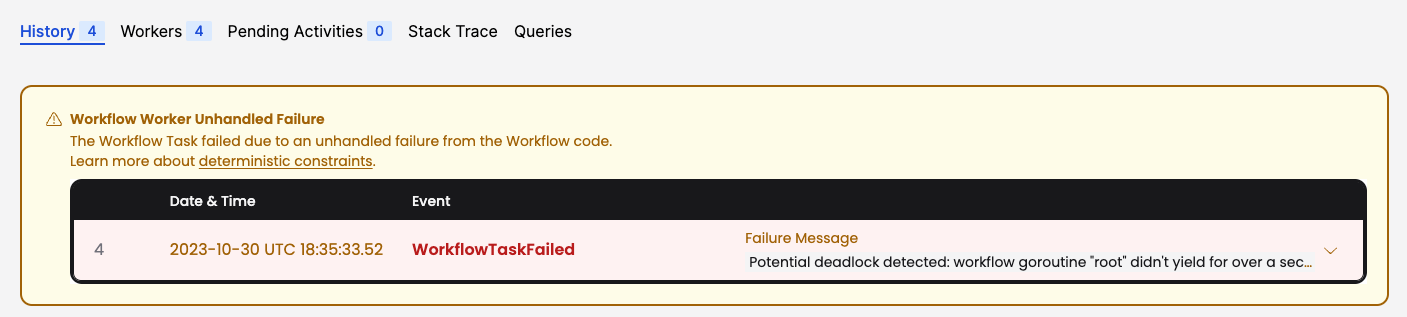
2023/11/08 08:33:03 ERROR Workflow panic Namespace backgroundcheck_namespace TaskQueue backgroundcheck-replay-task-queue-local WorkerID 89476@flossypurse-macbook-pro.local@ WorkflowType BackgroundCheckNonDeterministic WorkflowID backgroundcheck_workflow RunID 02f36de4-ca96-4468-a883-91c098996354 Attempt 1 Error unknown command CommandType: Timer, ID: 5, possible causes are nondeterministic workflow definition code or incompatible change in the workflow definition StackTrace process event for backgroundcheck-replay-task-queue-local [panic]:
go.temporal.io/sdk/internal.panicIllegalState(...)
You will see the failure in the Web UI as well:
To inspect the Workflow Task failure using the Temporal CLI, use the long value for the --fields option:
temporal workflow show \
 --workflow-id backgroundcheck_workflow_break \
 --namespace backgroundcheck_namespace \
 --fields long
Progress:
  ID          Time                     Type                                                        Details
   1  2023-11-08T15:32:03Z  WorkflowExecutionStarted    {WorkflowType:{Name:BackgroundCheckNonDeterministic},
                                                        ParentInitiatedEventId:0,
                                                        TaskQueue:{Name:backgroundcheck-replay-task-queue-local,
                                                        Kind:Normal}, Input:["555-55-5555"],
                                                        WorkflowExecutionTimeout:0s, WorkflowRunTimeout:0s,
                                                        WorkflowTaskTimeout:10s, Initiator:Unspecified,
                                                        ...}
   2  2023-11-08T15:32:03Z  WorkflowTaskScheduled       {TaskQueue:{Name:backgroundcheck-replay-task-queue-local,
                                                        Kind:Normal}, StartToCloseTimeout:10s, Attempt:1}
   3  2023-11-08T15:32:03Z  WorkflowTaskStarted         {ScheduledEventId:2, ...}
   4  2023-11-08T15:32:03Z  WorkflowTaskCompleted       {ScheduledEventId:2, StartedEventId:3, ...}
   5  2023-11-08T15:32:03Z  TimerStarted                {TimerId:5, StartToFireTimeout:1m0s, WorkflowTaskCompletedEventId:4}
   6  2023-11-08T15:33:03Z  TimerFired                  {TimerId:5, StartedEventId:5}
   7  2023-11-08T15:33:03Z  WorkflowTaskScheduled       {TaskQueue:{Name:flossypurse-macbook-pro.local:...,
                                                        Kind:Sticky}, StartToCloseTimeout:10, Attempt:1}
   8  2023-11-08T15:33:03Z  WorkflowTaskStarted         {ScheduledEventId:7, ...}
   9  2023-11-08T15:33:03Z  WorkflowTaskFailed          {ScheduledEventId:7, StartedEventId:8, Cause:NonDeterministicError,
                                                        Failure:{Message:unknown command CommandType: Timer, ID: 5, possible causes are
                                                        nondeterministic workflow definition code or incompatible change in the workflow definition,
                                                        ...}}
VSCode Debugger extension
Non-deterministic code can be hard to catch while developing Workflows. Leverage the Temporal Debugger for VS Code to debug Workflows by their ID or Workflow Event History file. See the vscode-debugger-extension README for usage details.
Does this mean Temporal can't be used for AI?
No - the opposite. Workflow determinism is exactly what makes Temporal a strong fit for AI applications. LLM calls, tool use, and agent steps are non-deterministic by nature, so you place them in Activities. This separation makes the orchestration dependable even though these individual steps are non-deterministic, so your agent can recover from crashes, retry failed LLM calls, and resume long-running tasks without losing state.
Non-deterministic code changes
The most important thing to take away is to make sure you have an application versioning plan whenever you develop and maintain a Temporal Application that will deploy to production.
The Event History
Inspect the Event History of a recent Background Check Workflow:
temporal workflow show \
 --workflow-id backgroundcheck_workflow \
 --namespace backgroundcheck_namespace
You should see output similar to:
Progress:
  ID          Time                     Type
   1  2023-10-25T20:28:03Z  WorkflowExecutionStarted
   2  2023-10-25T20:28:03Z  WorkflowTaskScheduled
   3  2023-10-25T20:28:03Z  WorkflowTaskStarted
   4  2023-10-25T20:28:03Z  WorkflowTaskCompleted
   5  2023-10-25T20:28:03Z  ActivityTaskScheduled
   6  2023-10-25T20:28:03Z  ActivityTaskStarted
   7  2023-10-25T20:28:03Z  ActivityTaskCompleted
   8  2023-10-25T20:28:03Z  WorkflowTaskScheduled
   9  2023-10-25T20:28:03Z  WorkflowTaskStarted
  10  2023-10-25T20:28:03Z  WorkflowTaskCompleted
  11  2023-10-25T20:28:03Z  WorkflowExecutionCompleted

Result:
  Status: COMPLETED
  Output: ["pass"]
Key events in the sequence:
WorkflowExecutionStarted: created in response to the request to start the Workflow Execution.WorkflowTaskScheduled: a Workflow Task is in the Task Queue.WorkflowTaskStarted: a Worker successfully polled the Task and started evaluating Workflow code.WorkflowTaskCompleted: the Worker suspended execution and made as much progress that it could.ActivityTaskScheduled: the ExecuteActivity API was called and the Worker sent the ScheduleActivityTask Command.ActivityTaskStarted: the Worker started evaluating Activity code.ActivityTaskCompleted: the Worker completed Activity code and returned any results to the Server.
The Event reference serves as a source of truth for all possible Events in the Workflow Execution's Event History.
Workflow Sleep sample
Add logging statements and a Timer to see how this affects the Event History. The sleep() API causes the Workflow to sleep for a minute before the Activity call.
By using Temporal's logging API, the Worker suppresses log messages during replay so log statements from the original execution aren't duplicated by re-execution.
import { log } from '@temporalio/workflow';
import { proxyActivities, sleep } from '@temporalio/workflow';
import type * as activities from './activities'; // Assuming 'activities' is the file containing your activity definitions

const { ssnTraceActivity } = proxyActivities<typeof activities>({
  startToCloseTimeout: '10 seconds',
});

export async function backgroundCheckWorkflow(param: string): Promise<string> {
  // Sleep for 1 minute
  log.info('Sleeping for 1 minute...');
  await sleep(60 * 1000); // sleep for 60 seconds
  log.info('Finished sleeping');

  // Execute the SSNTraceActivity synchronously
  try {
    const ssnTraceResult = await ssnTraceActivity(param);
    // Return the result of the Workflow
    return ssnTraceResult;
  } catch (err) {
    throw err;
  }
}
Inspect the new Event History
After updating your Workflow code, run your tests again. The TestReplayWorkflowHistoryFromFile test will fail because the new code creates new Events and alters the Event History sequence. To get the test to pass, get an updated Event History JSON file.
Reminder that this guide jumps between several sample applications using multiple Task Queues. Make sure you start Workflows on the same Task Queue that the Worker is listening to.
The new Event History contains two new Events from the sleep() API call which sends the StartTimer Command:
TimerStartedTimerFired
No Events related to logging appear. If you remove the Sleep call, there is no compatibility issue with the previous code. The basic rule: if the API call generates a Command that creates Events in the Workflow History that takes a new path from the existing Event History, then it is a non-deterministic change.
Non-deterministic changes include:
- Adding or removing an Activity
- Switching the Activity Type used in a call to
ExecuteActivity - Adding or removing a Timer
- Altering the execution order of Activities or Timers relative to one another
Changes that do not lead to non-deterministic errors:
- Modifying non-Command generating statements in a Workflow Definition, such as logging statements
- Changing attributes in the
ActivityOptions - Modifying code inside of an Activity Definition
What's next?
Build a Work Queue Slack App
Build a Slack work-queue app and deploy it to production on a DigitalOcean Droplet.
Start the series TutorialBuild a recurring billing subscription system
Use Workflows, Activities, Signals, and Queries to build a fault-tolerant subscription system.
Start the tutorialGet notified when we launch new educational content
New courses, tutorials, and learning resources - straight to your inbox.